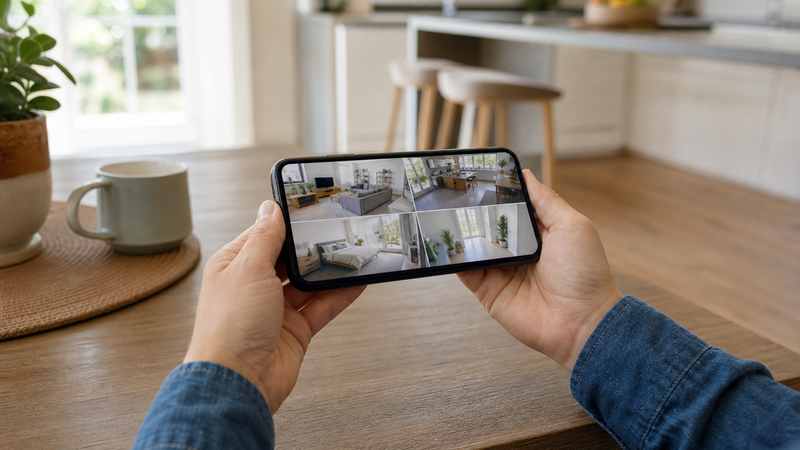
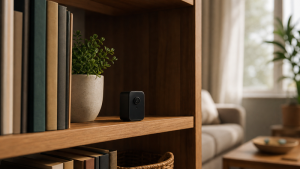
Most hidden cameras connect to your phone through your home or office Wi-Fi network using a dedicated app. Once connected, the camera sends live video, motion-triggered clips, and real-time alerts directly to your phone — anywhere you have an internet connection. Setup typically takes under ten minutes and does not require a subscription to get started, though cloud storage plans vary by device.
If you’ve been looking at hidden cameras and wondering what it actually takes to get one working on your phone, I’m going to walk you through the whole thing. Not the marketing language on the box — the real process, step by step, what can go wrong, and what you should verify before you ever hand over your money. This is the information I wish more people had before they bought.
What type of Wi-Fi connection do hidden cameras use?
Almost every app-connected hidden camera on the market today uses your standard home or office Wi-Fi to communicate with your smartphone. The camera connects to your network as a device — the same way a smart TV or wireless printer would — and from there it streams video or sends alerts through that connection to an app on your phone.
Here is where you need to pay attention: the majority of hidden cameras operate on a 2.4GHz Wi-Fi band, not 5GHz. This is important because most modern routers broadcast both. If your phone is connected to a 5GHz band and the camera is trying to pair on 2.4GHz, the setup process may fail or the connection may be unstable. Before you start, log into your router settings or check your phone’s Wi-Fi connection and confirm which band you’re on. Switch to 2.4GHz for setup. You can switch back after.
Range also matters. A camera in a back bedroom or a garage may be far enough from your router to struggle with signal. If you’re placing a camera in a spot with weak Wi-Fi, plan ahead. A Wi-Fi extender placed between your router and the camera location solves this in most cases. Weak signal equals dropped connections and missed alerts — and missed alerts defeat the purpose.
How do I set up a hidden camera to connect to my phone?
The process is more straightforward than most people expect, but the steps matter. Skipping one of them is usually what causes problems. Here’s what setup looks like for the majority of app-connected hidden cameras:
- Download the camera’s companion app before you do anything else. The app name is printed on the box or in the instructions. Have it installed and an account created before you power on the camera.
- Power on the camera and wait for the indicator light (if visible) to signal it’s in pairing mode. Most cameras have a brief setup mode when first powered on — a light blinking, a beep, or an audio prompt.
- Connect your phone to your 2.4GHz Wi-Fi network before opening the app. Some apps connect directly to the camera’s temporary Wi-Fi signal during setup before handing it off to your home network. Follow the in-app prompts exactly.
- Enter your Wi-Fi password into the app when prompted. This is how the camera learns your network credentials. The app passes that information to the camera during the pairing window.
- Wait for confirmation. Most cameras will signal a successful connection with a light change, a chime, or an on-screen confirmation in the app. If it fails, restart the camera, stay on 2.4GHz, and try again.
- Configure your alert settings immediately. Motion sensitivity, push notification preferences, quiet hours — set these before you walk away. Default settings are rarely the right settings.
One thing people miss: app permissions on your phone. The camera app needs permission to send push notifications. If you denied that permission during install, your phone will not alert you to motion events. Go into your phone’s settings, find the app, and confirm notifications are enabled. Don’t skip this. A camera that can’t alert you is a camera that isn’t doing its job.
What app features should I look for in a hidden camera?
Not all camera apps are built the same, and the app is just as important as the hardware. Here’s what you want confirmed before you buy:
Real-time push notifications. When the camera detects motion, your phone should receive an alert within seconds — not minutes. Test this on any camera you’re evaluating. Delayed alerts during a real situation are not acceptable.
Live view. You should be able to open the app and see a live feed from the camera at any time, from anywhere with a data connection. If a camera only records and doesn’t offer live view, understand that limitation before you buy.
Motion-triggered recording. The camera should save a clip when motion is detected, not just send an alert. Where that clip is saved — to a local SD card, to cloud storage, or both — varies by device. Know which applies to yours.
Two-way audio. Some hidden cameras include a microphone and speaker, letting you hear what’s happening and speak through the camera if needed. This feature is especially useful in hidden cameras designed for elderly care monitoring, where being able to check in verbally matters.
Night vision or low-light capability. If the space you’re monitoring gets dark, verify the camera has infrared night vision built in. Not all do.
Multiple user access. If more than one person needs to monitor the feed — a spouse, an adult child checking on a parent — confirm the app allows multiple accounts or shared device access.
Do hidden cameras work when I’m away from home?
Yes — and this is one of the most important capabilities to understand. Once your hidden camera is connected to your home Wi-Fi, you can view the live feed and receive motion alerts from anywhere in the world as long as your phone has an internet connection. You do not have to be on the same Wi-Fi network as the camera after the initial setup is complete.
This remote access is what makes these devices genuinely useful for monitoring a home while you travel, checking on an elderly family member, or keeping an eye on a workspace from another room or another state. If you’re looking at hidden cameras for workplace use, remote access means you’re not dependent on being physically present to know what’s happening.
One thing to check: some cameras require an active cloud subscription for remote access beyond a basic free tier. Read the storage and access terms before you buy. Understand exactly what is free, what requires a monthly fee, and what happens to your footage if you don’t subscribe. Know what you’re getting into before the camera is mounted on a shelf.
What can interfere with a hidden camera’s phone connection?
Several things can disrupt or break the camera-to-phone connection. Know these ahead of time so they don’t catch you off guard:
- Wi-Fi password changes. If your router password changes, the camera loses its connection immediately. You’ll need to go through setup again with the new credentials.
- Router reboots and IP address changes. Most home networks assign dynamic IP addresses. If your router reboots and the camera’s address changes, it may need a moment to reconnect. A brief delay is normal; a permanent disconnect is not.
- Distance and obstructions. Thick walls, metal shelving, and competing wireless devices in the 2.4GHz band (microwaves, cordless phones, baby monitors) can all degrade signal quality. Test your camera placement with the app open before you commit to a final position.
- App updates and phone operating system updates. Occasionally a phone OS update will conflict with camera app permissions. If alerts stop arriving after a phone update, go back to your notification settings and verify permissions are still enabled.
- Power interruptions. If the camera loses power — whether it’s battery-operated and the battery dies, or it’s plug-in and gets unplugged — it will need to reconnect to Wi-Fi when power is restored. Some cameras handle this automatically; some require a manual restart.
How do I know if my hidden camera is actually sending alerts to my phone?
Test it. This is not optional. After setup, walk in front of the camera and wait for an alert. Time it. If it takes more than fifteen seconds to arrive, check your notification settings and your Wi-Fi signal strength at the camera’s location. If it takes more than a minute, something is misconfigured. Fix it before you rely on that camera for anything that matters.
Repeat this test any time you make a change — new router, new phone, updated app, new camera placement. A camera you haven’t tested recently is a camera you can’t fully trust. Build a habit of pulling up the live feed once a week to confirm everything is still connected. This takes thirty seconds. Do it.
Also check your camera’s motion sensitivity setting. If it’s set too low, small movements won’t trigger an alert. If it’s set too high, you’ll get constant false alerts and start ignoring your notifications — which is almost as bad as getting no alerts at all. Calibrate it to the specific space the camera is watching.
Frequently Asked Questions About Hidden Cameras and Phone Connectivity
Do hidden cameras need Wi-Fi to connect to my phone?
Most app-connected hidden cameras require Wi-Fi for real-time alerts and remote viewing. Some cameras can record locally to an SD card without Wi-Fi, but you won’t receive motion alerts or be able to view footage remotely without a network connection. If Wi-Fi isn’t available at your location, look for cellular-connected camera options specifically designed for that use case.
Can I view my hidden camera from another state or country?
Yes. Once your camera is connected to your home Wi-Fi and paired with its app, you can access the live feed and receive alerts from anywhere your phone has an internet connection — whether you’re across town or on another continent. Remote access is one of the core functions of app-connected hidden cameras.
Why won’t my hidden camera connect to my phone during setup?
The most common cause is a 5GHz versus 2.4GHz band mismatch. Most hidden cameras only support 2.4GHz Wi-Fi. During setup, make sure your phone is connected to the 2.4GHz band on your router, not 5GHz. If your router has a combined SSID, temporarily separate the bands in your router settings during setup. Also confirm app notification permissions are enabled on your phone.
How far can a hidden camera be from my Wi-Fi router and still work?
This depends on your router’s signal strength and the number of walls or obstructions between the router and camera. As a general guideline, stay within 50 feet with clear line of sight, or closer if thick walls or floors are involved. If your camera placement is far from the router, add a Wi-Fi extender between them to maintain a stable connection and reliable alerts.
Do I need a subscription plan for my hidden camera to send alerts to my phone?
Basic motion alerts and live viewing are typically free with most hidden cameras. Cloud storage of recorded clips often requires a paid subscription. Read the terms for your specific device before purchasing — some cameras limit free cloud storage to 24 hours of clips, after which a subscription is required to retain footage. Local SD card storage is a free alternative to cloud plans on most devices.
Can more than one person receive alerts from the same hidden camera?
Many camera apps support shared access, allowing multiple users to monitor the same camera feed and receive alerts on separate phones. This is particularly useful for families checking on an elderly parent or couples monitoring a shared space. Check the app’s multi-user or family sharing feature before buying if shared access is important to your situation.
What should I check if my hidden camera suddenly stopped sending alerts to my phone?
Check these four things in order: (1) Confirm the camera is powered on and still connected to Wi-Fi. (2) Verify push notification permissions for the camera app on your phone haven’t been revoked, especially after a recent phone software update. (3) Check that motion detection is still enabled in the app settings. (4) Confirm your Wi-Fi network is functioning. Most alert failures trace back to one of these four causes.
Are hidden cameras legal to use in my home?
In most U.S. states, recording video in your own home for security purposes is legal, particularly in common areas. Recording in spaces where people have a reasonable expectation of privacy — bathrooms, bedrooms used by guests — carries legal and ethical restrictions. Audio recording laws vary significantly by state and may require all-party consent. Always check your state and local laws before placing a camera, and consult a legal professional if you have specific questions about your situation.
Getting a hidden camera properly connected to your phone is a straightforward process when you know the steps — and more importantly, when you know what to verify after setup is complete. The camera is only as useful as the alerts it sends you, so test it, configure it carefully, and check it regularly. Don’t set it up and forget about it.
At HerGuarded, we carry hidden cameras built for real situations — protecting elderly family members at home, monitoring a workspace, securing a space you can’t always be physically present in. Browse our selection of hidden cameras for elderly care and hidden cameras for the office to find a device matched to what you’re actually trying to protect. If you have questions about any of them, ask. That’s what we’re here for.